Guide
Connect MainStage to Strobe
Run your set in MainStage, and let it drive the lights: changing patch switches the song in Strobe, the tempo follows, and the lights play when the band does.
What Strobe listens to
Strobe listens to every MIDI input of your Mac. From MainStage, it uses three kinds of messages:
- Program Change
- Selects the track with that MIDI program, the number in front of each song in the setlist. Only on MIDI channel 1.
- MIDI clock
- Sets the tempo the lights play at.
- Start / Stop
- Plays and stops the track's lights.
Set it up
-
1
Create a virtual MIDI bus
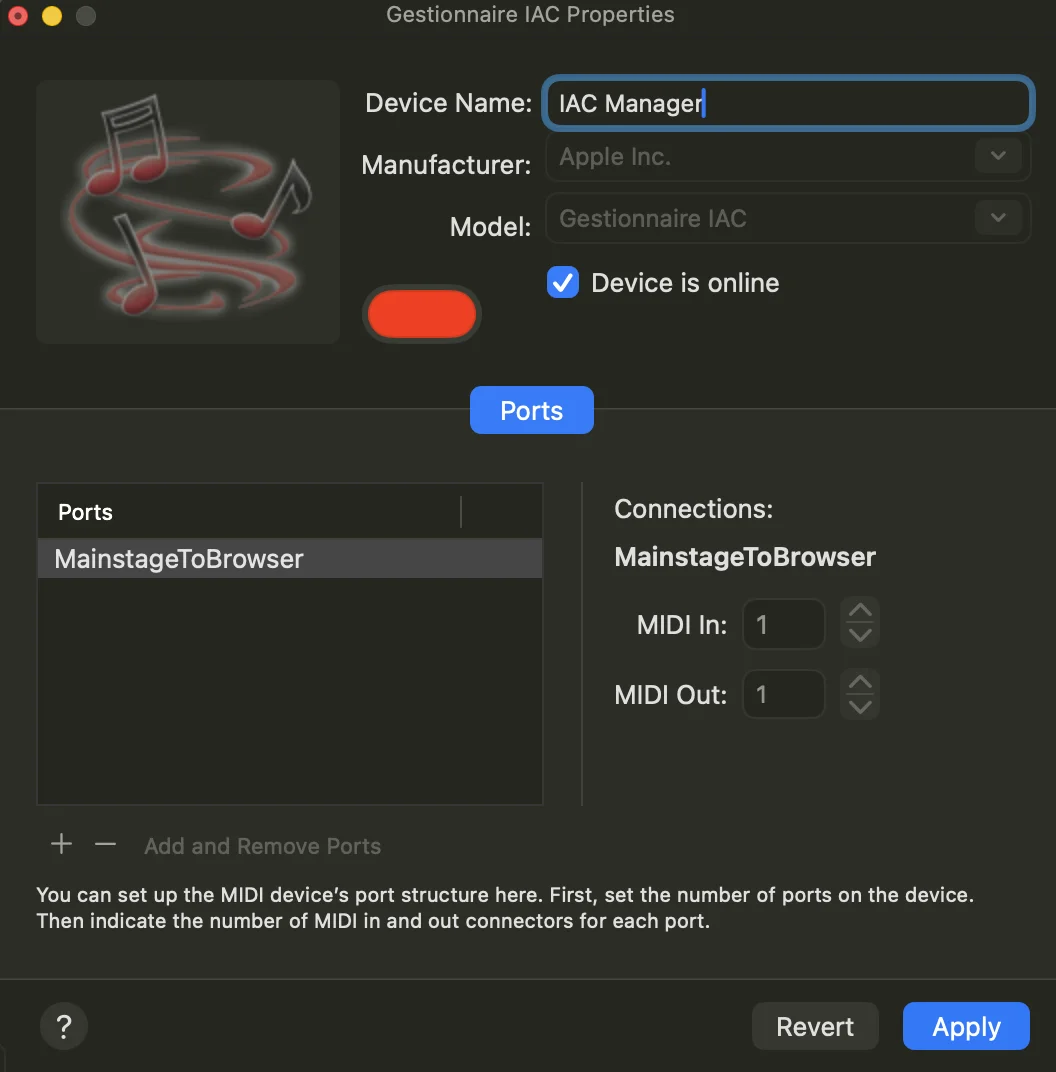
MainStage and Strobe talk through a virtual MIDI bus of the Mac's IAC Driver: MainStage sends to it, Strobe listens to it.
- Open Audio MIDI Setup (in Applications > Utilities), then choose Window > Show MIDI Studio.
- Double-click IAC Driver.
- Select Device is online.
- Click the + button below the list of ports to add a bus. Double-click its name, call it MainStage to Strobe, then press Return.
- Click Apply.
More in Apple's guide: Transfer MIDI information between apps.
-
2
Add a DMX track to each song
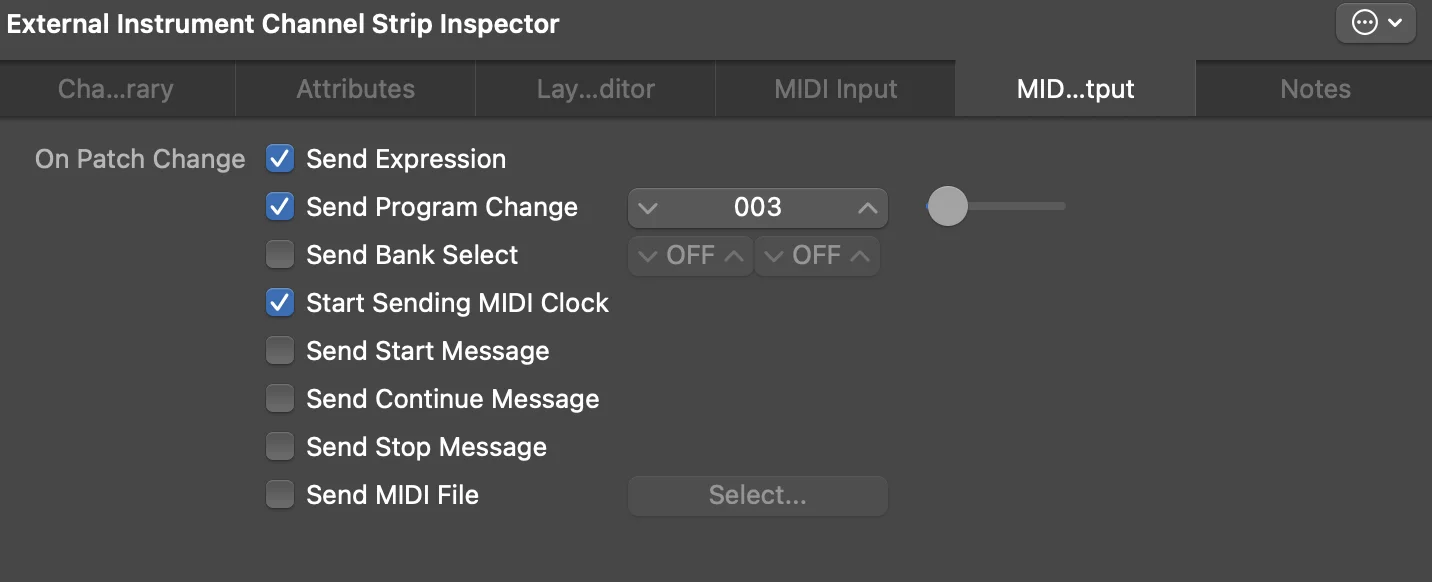
In each patch of your concert that has lights, add an External Instrument channel strip called DMX. It only sends MIDI to Strobe:
- Its MIDI output goes to the MainStage to Strobe bus, on MIDI channel 1.
- In its inspector, MIDI Output tab, under On Patch Change: select Send Program Change, with the song's number (see step 4), and Start Sending MIDI Clock, so Strobe follows the patch's tempo.
-
3
Snap the backing tracks to the beat
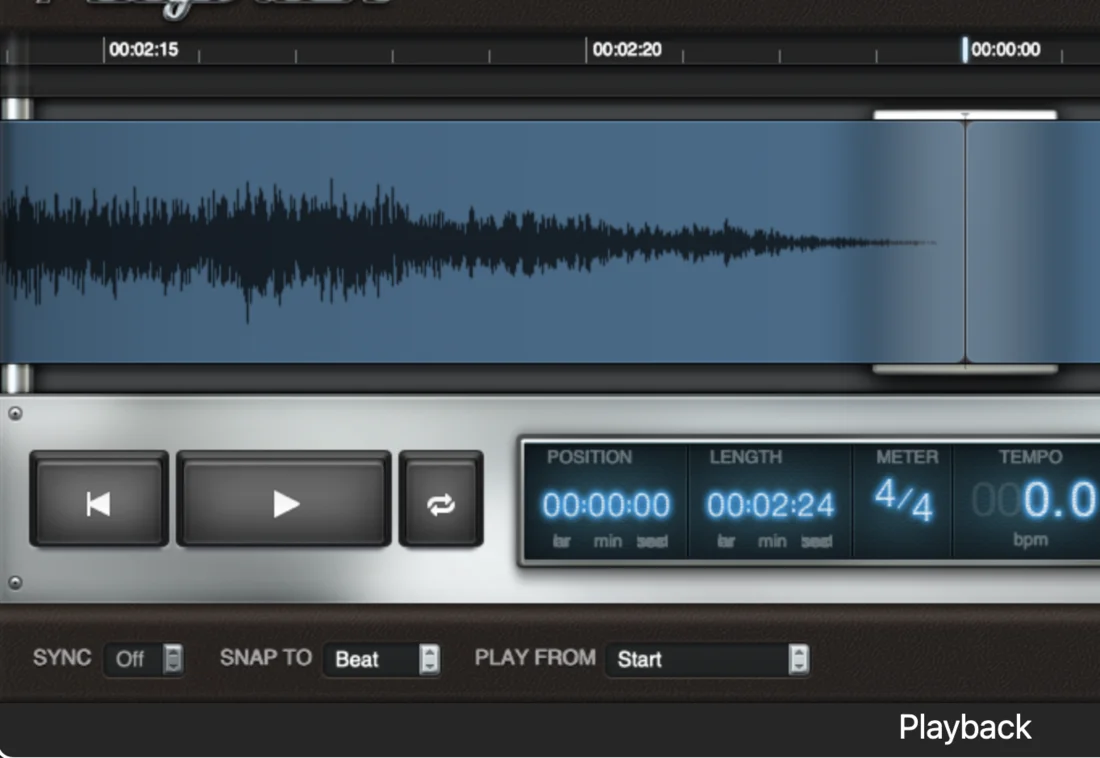
If a song plays its backing track with MainStage's Playback plug-in, set Snap To to Beat.
-
4
Match your songs in Strobe
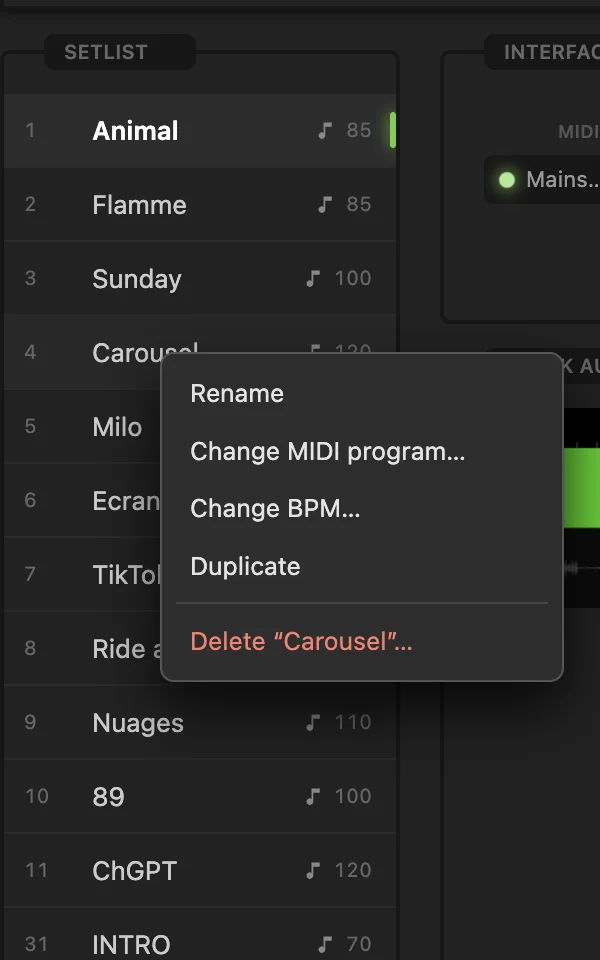
Each track of Strobe's setlist has a MIDI program, the number in front of its name: right-click the track, then Change MIDI program… to change it. Programs go from 1 to 128.
A Program Change sent with the value 0 selects program 1, 1 selects program 2, and so on: give each song in Strobe the number its DMX track shows in Send Program Change, plus one. A DMX track sending 003 selects program 4.
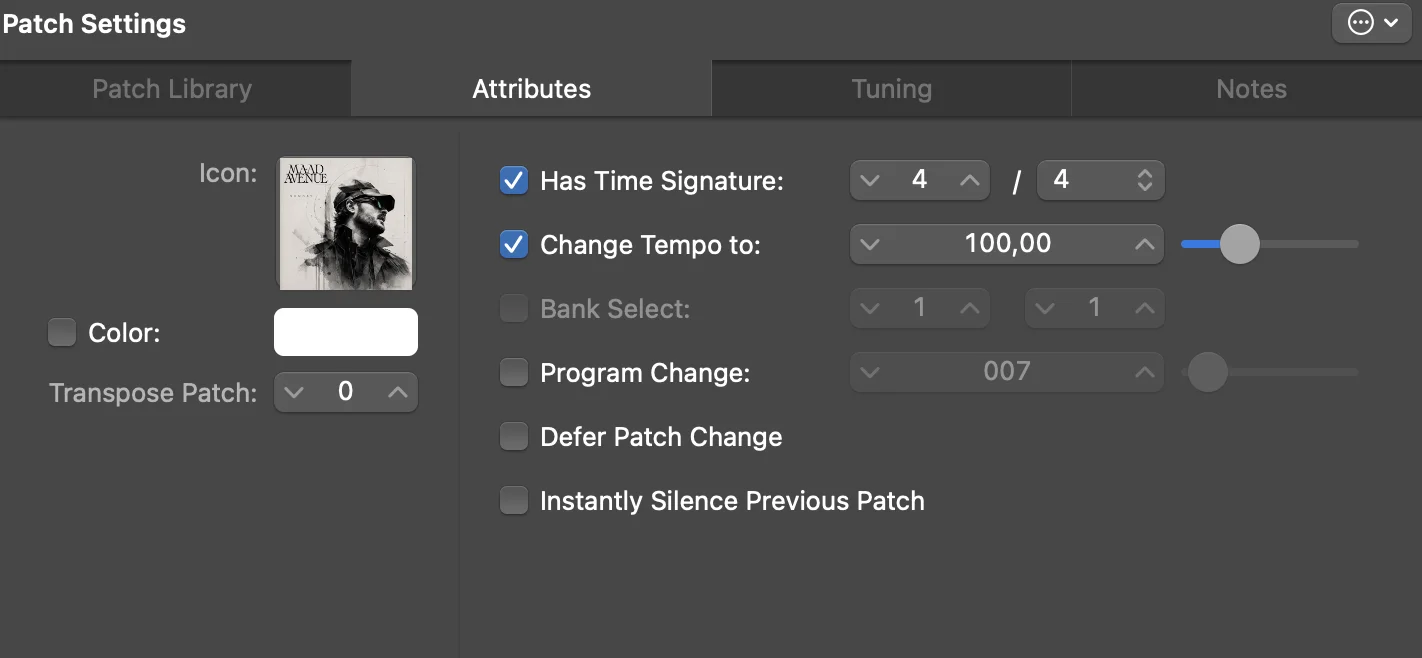
Give each song the same tempo in both apps: in MainStage, select Change Tempo to in the patch's settings (Attributes tab) and set the tempo; in Strobe, set the track's BPM, the number after its name (right-click the track, then Change BPM…).
-
5
Check the connection
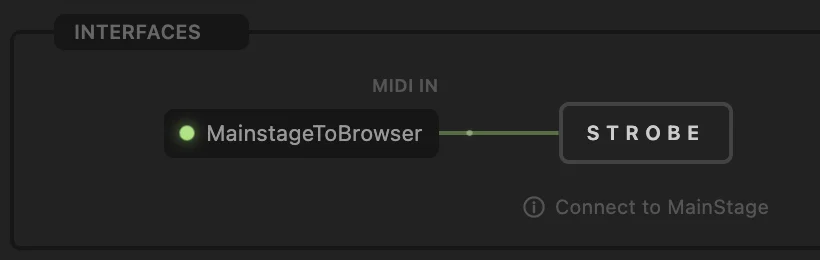
Open the Interfaces section of Strobe: the bus shows up under MIDI in, with the name you gave it and a green dot, and lights up each time MainStage sends something.